How to get your business app onto Google Play
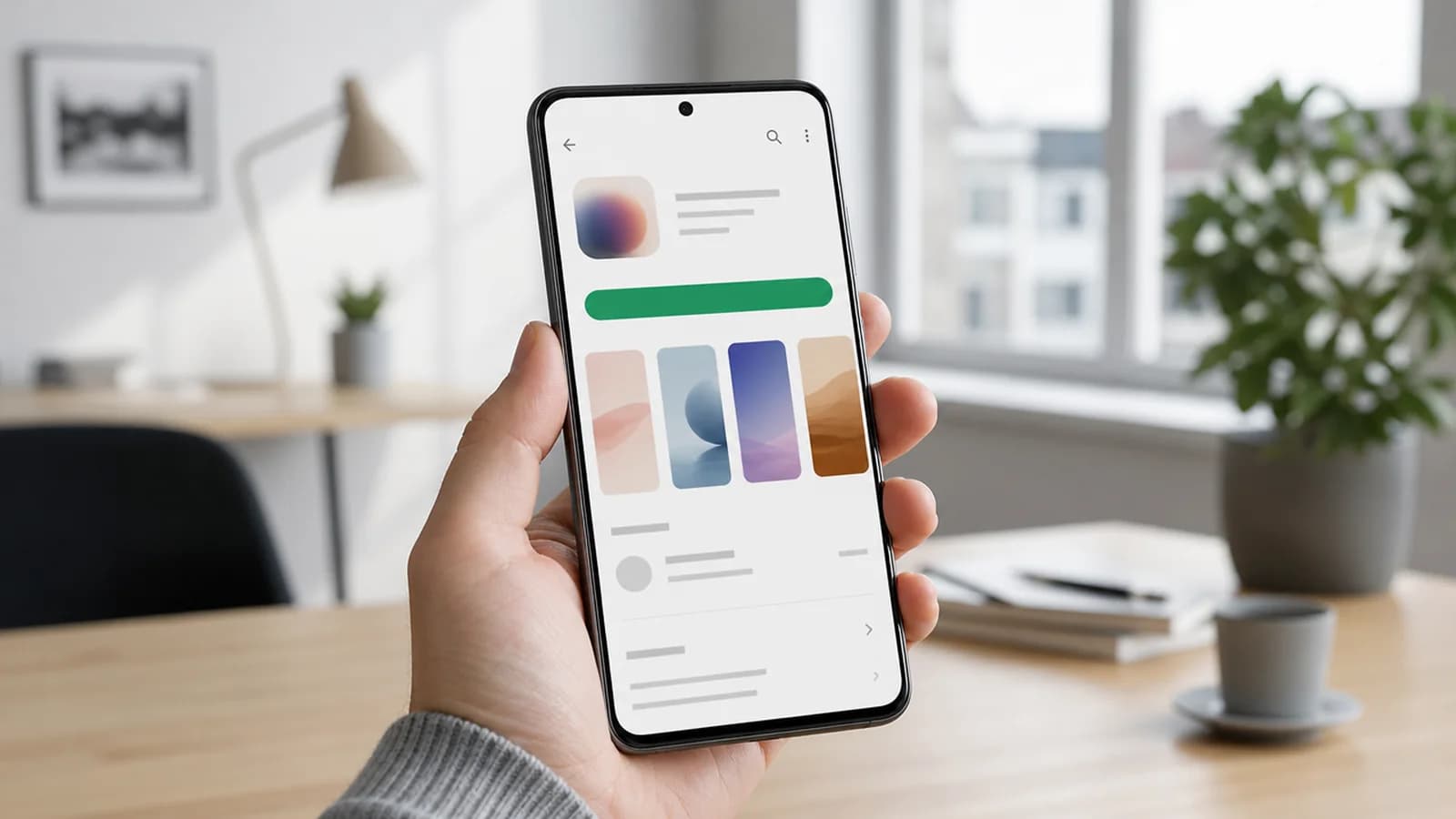
If you are about to publish an app on Google Play, the upload itself is the easy part. It takes minutes. What takes time is the account, the verification, the store listing and all the answers Google wants about what the app does with data.
I have taken several apps through this process, and the pattern is always the same. The owner thinks publishing is the last day of the project. In practice it is a small process of its own that should start several weeks before the app is finished, simply because parts of it cannot be rushed however much you want them to be.
This text is written for you as the business owner, not for the developer. You should be able to read it and know what to obtain, what to answer and what you should never hand over. If we build the Android app for you, we do most of this together, but the account and the identity have to sit with the company.
The developer account is the first hurdle, and you can sort it early
You need a Google Play developer account to publish anything at all. It costs a one-time fee. It is not a subscription, and you do not pay per app. The amount is stated when you register in Play Console, and that is where you should read it, not in a blog post that may have gone out of date.
Choose the account type correctly from the start. An organisation account belongs to the company, a personal account belongs to you as a private individual. Changing it afterwards is awkward. If you run a limited company, the account should sit with the company, with a company email more than one person can reach. I have seen apps get stuck because the only person with access left the job.
Then comes verification. Google wants to know that the company exists and that you are allowed to represent it. That means an organisation number, a company certificate or the equivalent, a D-U-N-S registration, an address and a phone number that actually answers. This is calendar time, not working time: you submit, and then you wait for a system or a person somewhere else entirely. If the app has to launch on a given date, start the account well before.
The store listing sells the app before anyone opens it
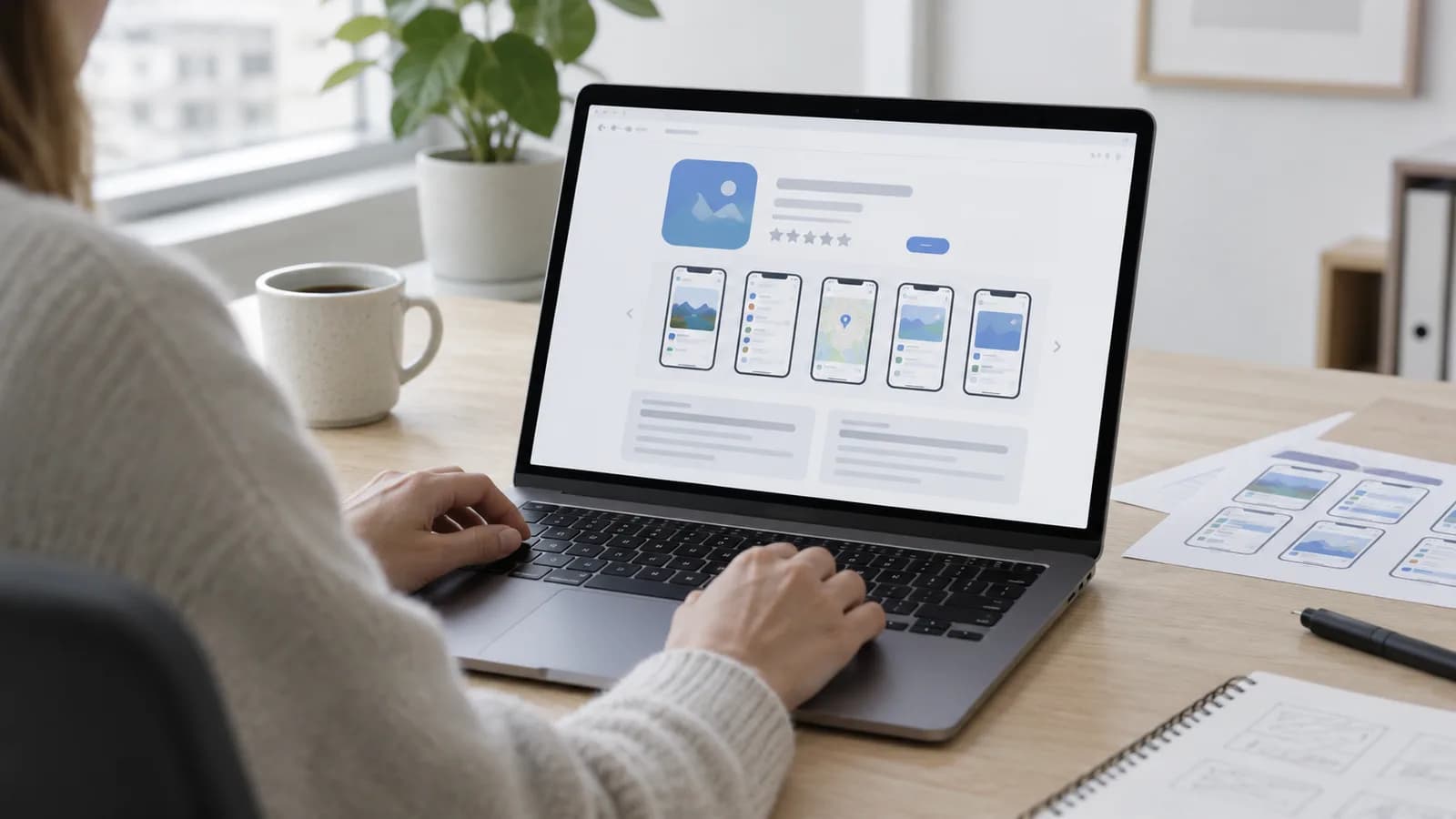
The store listing is what people see in the Play store, and it is marketing, not a form you fill in at the end. Most people decide on the icon, the first two screenshots and the first line of the description. Almost nobody reads the rest.
- App icon. Square, simple and readable at tiny size. Your logo rarely works unchanged.
- Screenshots. Several of them, in the sizes Play requires. Show what the app actually does, not an empty login screen.
- Feature graphic. A wide banner Google uses in several places in the store.
- Short description. A few lines that appear first. This is the most important text you write.
- Full description. Longer text about what the app does and for whom. It also counts for search inside the store.
- Category and content rating. You answer a questionnaire about the content and get an age rating back.
- Contact details. An email address that is in use, and a link to the privacy policy.
Set aside proper time for this. It is tempting to write the description in ten minutes because the app is finally finished, but the text and the images stay up for a long time. You can change them later, and you should, but the first impression hits your first users.
Privacy policy and the data safety form
Google requires a privacy policy at a public address, and it has to cover the app, not just the website. If you have already tidied this up for the website, much of it can be reused, but the text must say what the app collects. If you are writing it from scratch, start with what GDPR requires of a Norwegian business website and build out from there.
On top of that you fill in a data safety form in Play Console: which data the app collects, whether it is shared onwards, whether it is encrypted, and whether the user can request deletion. This is the part most people take too lightly. The form is a declaration, and Google checks it against what the app actually does. If it says you do not collect location while the app asks for location, the app gets stopped or removed. Answer honestly, and answer together with whoever wrote the code, because only the developer knows which libraries send data onwards in the background.
The signing key decides who really owns the app
Every Android app is signed digitally. The signature is what makes a new version accepted as an update of your app, and not as a stranger's app with the same name. If you lose control of the key, you may in the worst case not be able to update the app at all.
In practice most people use Play App Signing, where Google holds the final key and you hold an upload key. That is a good arrangement, but my point is a different one: the account, the key and the access belong with the business, not with the agency. I hand over keys and access to the client as part of app development, because the code and the app are yours. Ask about this before anyone starts building for you. It is an uncomfortable question to raise only once the collaboration is over.
Internal testing, closed testing, then production
You can push straight to production, but you should not. Play Console has several tracks, and they exist because mistakes are cheaper to find before the app is public. The order is simple: internal first, then a closed group, then out to everyone.
| Track | Who gets it | What you use it for |
|---|---|---|
| Internal testing | A short list of email addresses you control yourself. | Checking that the build installs, starts and does not crash. |
| Closed testing | Invited testers, ideally employees or real customers. | Finding what is confusing, not just what is broken. |
| Open testing | Anyone who finds it in the store. | Volume and phones you do not own yourself, before full launch. |
| Production | Everyone. | Launch, optionally rolled out gradually to a share of users. |
When you send a build for review, you wait. How long varies with how old the account is, what the app does and how busy Google is. It often goes quickly, but it can also stall, and there is no queue you can call. Plan as if the review takes longer than you hope, especially for the very first submission, which tends to take longest. New accounts may also have to run a closed test with a given number of testers over a period before production opens, so check the requirement that applies to your account in Play Console.
And then come the updates
Publishing is not an ending. Every new version goes through a new review, and you have to write what is new. Google also raises the requirement for which Android version the app must be built against on a regular basis. If you do not keep up, the app can become invisible to newer phones even though it still works fine for those who already have it installed. That is the quiet way an app dies, and the owner rarely notices before someone asks why they cannot find it.
- Create the developer account and start verification before the code is finished.
- Put the privacy policy at a public address the app can link to.
- Make the icon, screenshots and descriptions while the app is tested internally.
- Fill in the data safety form together with the developer, and answer honestly.
- Run internal testing, then closed testing with people outside the project.
- Send it to production, and expect to wait for the review.
- Set a fixed routine for updates, so the app keeps up with the requirements.
Most of this is not difficult. It is just a lot of small things that have to be in place at the same time, and they connect in ways that are not obvious until you are standing in it. If you are wondering what the whole journey costs, I have written about what an app actually costs. If you would rather have someone take the whole road from idea to published app, that is how I work with Android.
What does it cost to publish an app on Google Play?
You pay a one-time fee for the developer account. It is not a subscription, and not per app. The amount is stated when you register in Play Console, and that is where you should check it. Publishing each individual app costs nothing extra.
How long does it take to get the app approved?
It varies. The first submission usually takes longest, and new accounts tend to be looked at more closely. It often goes fine, but you get no guarantee, so do not put a launch date right up against the submission.
Must the account sit with the company, or can I use my private one?
If you run a limited company, it should be an organisation account on the company. That makes the verification correct, lets several people have access, and stops the app getting stuck with a private individual who leaves.
Who should hold the signing key for the app?
The business. The key is what makes future updates accepted as your app. If you use an agency, you should hold the key and the access to the developer account once the job is done.
Can the app be removed after it is published?
Yes. The most common reason I see is that the data safety form does not match what the app actually does, or that the app has not been updated to the current requirements. Both are avoided with a little routine.
Want help with this? See how we work with apps for android.
Not sure where your website stands?
Run a free analysis and get an honest picture of speed, structure and things that could be stopping your customers.